Tuesday, July 26, 2011

tcpdump and ngrep

Yesterday, I tweeted the following:
tcpdump -nnvvAi eth1 -s0 | grep "Doug Burks is teaching SANS SEC503 Intrusion Detection In-Depth in Portland"
 So what does it all mean?

-nn This option disables name resolution for IP addresses and port numbers.  Some versions of tcpdump do this with a single "-n", but the double "-nn" option should work on all of them.
vv This option enables Very Verbose output.  It wasn't strictly needed for the purposes of this command, but I'm in a habit of using it.
A This option prints just the ASCII text in the packets.  This is useful when looking for strings like "Doug Burks is teaching SANS SEC503 Intrusion Detection In-Depth in Portland" or "c99shell".
i This option allows you to specify the Interface (in this case eth1).  eth1 on my Security Onion box at home is connected to a Dualcomm Switch Tap that monitors all ingress/egress of my home network.  Doesn't everybody do full packet capture at home?
-s0 This option sets the snaplen. By default, tcpdump only captures 68 bytes and would therefore not see the entire payload of the HTTP connection.  Setting snaplen to 0 forces tcpdump to capture the entire packet regardless of its size.
grep Since we had tcpdump output in ASCII, we can easily use the standard grep command to look for interesting text strings.

I was waiting on someone to ask the question "Why not use ngrep instead?".  tcpdump's advantage is that it is more universally available than ngrep.  If you're doing Incident Response on a Unix box of some kind, chances are that it already has tcpdump installed and you can use that to look for suspicious traffic as defined above.

Most Unix boxes do not have ngrep installed by default.  But let's assume that you've got a dedicated IDS platform such as Security Onion which just so happens to include ngrep by default.  Here's the  ngrep version of the command:
 ngrep -d eth1 -s0 "Doug Burks is teaching SANS SEC503 Intrusion Detection In-Depth in Portland"
Here we use the "-d eth1" option to force ngrep to listen on device eth1 and the "-s0" option to force ngrep to look at the entire packet.  Note that, unlike tcpdump's default snaplen of 68 bytes, ngrep defaults to 65536, so this option isn't strictly needed here, but is included for completeness.  After specifying these options, we simply tell ngrep what string to look for.

Doug Burks is teaching SANS SEC503 Intrusion Detection In-Depth in Portland Oregon 8/22 - 8/27.  Sign up today!
http://www.sans.org/portland-2011-cs-2/description.php?tid=4866

Monday, July 25, 2011

Doug Burks is teaching SANS SEC503 Intrusion Detection In-Depth in Portland 8/22 - 8/27

Doug Burks is teaching SANS SEC503 Intrusion Detection In-Depth in Portland Oregon 8/22 - 8/27.  For more information about the class, please see:
http://www.sans.org/portland-2011-cs-2/description.php?tid=4866


Enter Discount Code COINS10 at the time of registration to save $356 on Tuition!

Thursday, July 14, 2011

Security Onion 20110714 now available

Security Onion 20110714 is now available!  This release completes the PulledPork reconfiguration to ignore a new Emerging Threats BLOCK category released on 7/8/2011.

Existing Security Onion users can perform an in-place upgrade to version 20110714 using the following command (i
f you're behind a proxy, remember to set your proxy variables as described in the FAQ):
sudo -i "curl -L http://sourceforge.net/projects/security-onion/files/security-onion-upgrade.sh > ~/security-onion-upgrade.sh && bash ~/security-onion-upgrade.sh"

Monday, July 11, 2011

Security Onion 20110709 now available

Security Onion 20110709 is now available!  This release configures PulledPork to ignore a new Emerging Threats BLOCK category released on 7/8/2011.

Existing Security Onion users can perform an in-place upgrade to version 20110709 using the following command (if you're behind a proxy, remember to set your proxy variables as described in the FAQ):
sudo -i "curl -L http://sourceforge.net/projects/security-onion/files/security-onion-upgrade.sh > ~/security-onion-upgrade.sh && bash ~/security-onion-upgrade.sh"

Wednesday, June 29, 2011

Security Onion 20110628 now available

Security Onion 20110628 is now available!  This release fixes two minor issues with the OSSEC Sguil agent.

Existing Security Onion users can perform an in-place upgrade to version 20110628 using the following command (if you're behind a proxy, remember to set your proxy variables as described in the FAQ):

sudo -i "curl -L http://sourceforge.net/projects/security-onion/files/security-onion-upgrade.sh > ~/security-onion-upgrade.sh && bash ~/security-onion-upgrade.sh"

Wednesday, June 22, 2011

Security Onion and UTC

Sguil uses UTC.  It does this for a few reasons:
  1. UTC avoids any timewarps when changing from standard time to daylight saving time and vice versa.
  2. UTC allows for correlation when sensors are in different time zones.
Because Sguil uses UTC, it is recommended to set your Security Onion timezone to UTC.  Here's how:
echo "Etc/UTC" | sudo tee /etc/timezone
sudo dpkg-reconfigure --frontend noninteractive tzdata
For more information, please see:

Friday, June 17, 2011

Security Onion 20110614

Security Onion 20110614 is now available!  This upgrade fixes a few issues with downloading rules and adds some new menu entries to make rule editing a little easier.  For more information, please see Issue 111.


In-place Upgrade
Existing Security Onion users can perform an in-place upgrade to version 20110614 using the following commands:
wget http://sourceforge.net/projects/security-onion/files/security-onion-upgrade.sh
sudo bash security-onion-upgrade.sh
Screenshots
New menu entries

Clicking "Disable Downloaded Rules" opens disablesid.conf in a text editor

Clicking "Rule update" will run PulledPork and restart Barnyard2/Snort

Monday, June 13, 2011

Security Onion 20110607 featuring Sguil 0.8, Squert 0.8.3, and more polish!

Update:  Looks like the Security Onion 20110607 files haven't fully replicated to all Sourceforge mirrors yet. If you're having trouble downloading, please try later today.


Update 2011/06/14 6:00 AM: Sourceforge is reporting that the Security Onion 20110607 files have replicated to at least 15 mirrors now.

Security Onion 20110607 is now available!  New features in this release are as follows:

  • Sguil 0.8 (now with more shininess and anti-aliased fonts!)
  • Squert 0.8.3 (now with user authentication!)
  • new tcl/tk packages (resolves a scaling issue when running in VMWare and allows for the anti-aliased fonts mentioned above)
  • httpry
  • a new Setup script (adds support for Sguil 0.8 and Squert 0.8.3 and also provides more information once Setup completes)


New Users
New users can download the latest ISO image from here.  It should be noted that pentest tools have been removed from this ISO.  This includes metasploit, john, ophcrack, and steghide.  For more information, please see Issue 106.

In-place Upgrade
Existing Security Onion users can perform an in-place upgrade to version 20110607 using the following commands:
wget http://sourceforge.net/projects/security-onion/files/security-onion-upgrade.sh
sudo bash security-onion-upgrade.sh
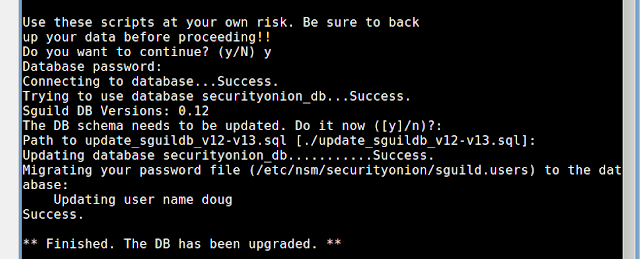
It will then upgrade your box to the latest tcl/tk, Sguil, Squert, and Setup script.  If you have an existing Sguil database, it will run the Sguil DB upgrade, which will ask:
Do you want to continue? y
Database password: Press Enter to accept the default of "null" (unless you've changed the MySQL root password)
DB schema needs to be updated: Press Enter to accept the default of "y"
Path to update...Press Enter to accept the default
Please test the upgrade on test machines before upgrading your production machines.

Screenshots

Upgrade process


 Sguil login window

Squert login window 

Saturday, June 4, 2011

Security Onion featured in SANS Student Project

Security Onion was featured in a SANS Student Project.  Russ McRee, Beth Binde, and Terrence O’Connor recently published Assessing Outbound Traffic to Uncover Advanced Persistent Threat.  Great paper!

Tuesday, May 24, 2011

Security Onion Success Stories

I received a couple of Security Onion Success Stories recently.  I appreciate Brett S. and Gene A. taking the time to say thanks.   It's a great source of encouragement and motivation for me to continue with the project.  If you would like to share your Security Onion Success Story, please post it in the Comments section.  Thanks!
Doug,

I wanted to thank you for providing Security Onion and maintaining it
so diligently.  I was a faculty advisor for the U.S. Coast Guard's
Cyber Defense Exercise this year.  Every year, the service academies
set up their networks and have NSA's red team try to bring down
servers and steal information.  For Coast Guard, the team is recruited
from the members of the only Networks course.

It was my first year with the cadets, and I had realized early that
the team had no IDS experience, and was thoroughly swamped just trying
to get the network up and running.  Security Onion to the rescue --
requiring just a few of the less experienced members with some
guidance, we were able to watch the more obvious attacks from outside
the firewall as well as the false positives from the exercise scoring
software.  It really was educational for the group -- rather than just
wondering what hit us, there was ample information in near real time
to figure out what was happening.   Knowing how to respond is another
story, of course.

 In the end, Coast Guard placed 3rd, which is pretty good given the
size and amount of resources available compared to Air Force and
Army.  Some of the team have expressed interest in getting more
involved with configuration and fine-tuning Snort next year, because
they had first-hand experience with how it behaved under basic
defaults.

Thanks again for providing such a useful tool -- it significantly
enhanced the educational impact of the exercise.

Brett S.

Doug, Brett, It wasn't just the USCG that was using Security Onion during the CDX.  We here at the Naval Postgraduate School also used Security Onion as a quick and easy IDS solution.  Of all the tools we employed during the exercise Security Onion was by far the easiest to get up and running and provided us with a great insight into the attacks used during the exercise. 
 Great job, Doug!  Keep up the good work.
Sincerely, 
Gene A. 

Monday, May 2, 2011

Security Onion featured in ISSA Journal

I always look forward to Russ McRee's Toolsmith column in the ISSA Journal.  This month's Toolsmith column features Security Onion!  Russ, thanks for the article and your kind words!

Thursday, April 7, 2011

Security Onion 20110321: Distributed Sguil Sensors

Security Onion 20110321 is now available!  This new version includes an updated Setup script that allows you to easily create a Sguil server and then create multiple Sguil sensors that report back to the Sguil server.

How do I get it?
New users can download the latest ISO image from here.  Existing Security Onion users can perform an in-place upgrade to version 20110321 using the following commands:

wget http://downloads.sourceforge.net/project/security-onion/security-onion-upgrade.sh
sudo bash security-onion-upgrade.sh 
Existing users, please note that running Setup on a previously configured system will remove any existing configuration.

How do I create a Sguil server?
You have three options:
1.  Launch Setup and choose "Quick Setup".  This will install a Sguil server AND create a Sguil sensor for each ethernet interface on the server.
2.  Launch Setup, choose "Advanced Setup", and choose "Both".  This will install a Sguil server AND create a Sguil sensor for each ethernet interface on the server, but will give you more options than "Quick Setup".
3.  Launch Setup, choose "Advanced Setup", and choose "Server".  This will just install a Sguil server.

How do I create a Sguil sensor?
Launch Setup, choose "Advanced Setup", and choose "Sensor".  Enter the name/address of the Sguil server and a username that has sudo permissions on the server.  A terminal window will appear prompting you to login to the server to complete the server configuration.

Demo
Download the latest ISO image from here.
Boot the Security Onion ISO and choose Install from the boot menu.
Standard Ubuntu installer appears.  Follow the prompts to complete your installation.
Reboot into your new Security Onion installation and login using the username/password you specified in the previous step.
Double-click the Setup desktop shortcut.
Administrative password prompt appears.  Enter your password and click OK.

Welcome screen appears.  Press Enter.

Quick Setup screen appears.  Press Enter.

Username screen appears.  Enter your desired Sguil username and press Enter.

Password screen appears.  Enter your desired Sguil password and press Enter.

Password confirmation screen appears.  Confirm your desired Sguil password and press Enter.

Settings confirmation screen appears.  Press Enter.

Setup creates the Sguil server and sensors and then starts all services.


Setup Complete screen appears.  Press Enter.

Double-click the Sguil desktop shortcut.  Login window appears.  Enter the Sguil username/password you specified in Setup.

Sensors window appears.  Click "Select All" and then click "Start Sguil".

Sguil main window appears.  Simulate an attack by going to a terminal and typing "curl http://testmyids.com".

A new alert should appear in the Sguil window.  Notice that the sensor is named server-eth0, where "server" is the hostname and "eth0" is the interface that saw the traffic.

We've now verified that the Sguil server is running correctly.  Let's go to our second machine and build a sensor.
Boot the Security Onion ISO and choose Install from the boot menu.
Standard Ubuntu installer appears.  Follow the prompts to complete your installation.
Reboot into your new Security Onion installation and login using the username/password you specified in the previous step.
Double-click the Setup desktop shortcut.
Administrative password prompt appears.  Enter your password and click OK.

Welcome screen appears.  Press Enter.

Quick Setup screen appears.  Click "No, use Advanced Setup".

Components screen appears.  Click "Sensor" and click "OK".

Server Hostname screen appears.  Enter server hostname/address and press Enter.

SSH Username screen appears.  Enter username on server and press Enter.

IDS Engine screen appears.  Press Enter.

Interfaces screen appears.  Select your desired interface(s) and click OK.

Confirm Settings screen appears.  Click "Yes, proceed with the changes!".

Terminal appears prompting to accept SSH key of server.  Type "yes" and press Enter.


Password prompt appears.  Enter password and press Enter.

Sudo prompt appears.  Enter password and press Enter.


Setup creates the Sguil sensor(s).

 Setup starts all Sguil services.

Setup Complete screen appears.  Press Enter.

Simulate an attack by opening a terminal and typing "curl http://testmyids.com".  

At this point, we can return to our server.  In the Sguil window, click File and then click "Change monitored networks".

Sensor selection window appears.  Notice that there are new sensors named sensor-eth0, sensor-eth1, sensor-eth2, and sensor-ossec.  Select the new sensors and click "Start Sguil".

Click the "Agent Status" tab and verify that the the new sensors are checking in.

Notice that there is a new alert with a sensor name of sensor-eth0, where "sensor" is the hostname of the sensor and "eth0" is the interface which saw the traffic.

In this blog post, we've demonstrated how Security Onion can build an army of distributed Sguil sensors in just a few minutes.

Wednesday, February 23, 2011

Security Onion 20110222 Resolves 2 Issues

I've uploaded a new security-onion-upgrade.sh script which resolves a couple of issues:

http://code.google.com/p/security-onion/issues/detail?id=80
http://code.google.com/p/security-onion/issues/detail?id=87

To download and run the upgrade script, open a terminal and execute the following:

wget http://downloads.sourceforge.net/project/security-onion/security-onion-upgrade.sh
sudo bash security-onion-upgrade.sh 

Saturday, January 22, 2011

Security Onion 20110122 fixes DNS error in Sguil

I received Issue 77 in the Security Onion Issue Tracker.  The Issue describes an error when enabling Reverse DNS queries in Sguil.  I was able to duplicate the issue.

I consulted with Bamm Visscher and he said this was due to Ubuntu's libudp-tcl package.  I removed libudp-tcl and Reverse DNS queries started working again.

I've released a new upgrade script that fixes this issue automatically.  Just download security-onion-upgrade.sh from http://sourceforge.net/projects/security-onion/files/ and run it like so:
sudo bash security-onion-upgrade.sh

It will then upgrade your Security Onion installation to version 20110122 and Reverse DNS queries should start working correctly.

Thursday, January 20, 2011

Introduction to Sguil and Squert: Part 4

This post is the fourth in a multi-part series designed to introduce Sguil and Squert to beginners.

I'm assuming you've already been through the steps in the previous posts in this series:

Introduction to Sguil and Squert: Part 1
Introduction to Sguil and Squert: Part 2
Introduction to Sguil and Squert: Part 3


In Part 3, we saw Sguil's killer feature of being able to pull session transcripts from the full packet captures to show an entire attack from beginning to end.  In Part 4, we're going to see one of Squert's killer features: alert visualization.


Using the alerts from yesterday's demo, we display them in Squert.


Right above the alerts, we click "create" and are then prompted for some options.  We give it a name and keep the other options at their default settings.


We then click the "create" button and then a graph is generated of the alert data.


We can then click on the graph to open a larger version and see more detail.

Security Onion nsm_all_del script

This blog post will demonstrate the nsm_all_del script.  If you ran through Setup and configured your sensors but decide that you need to re-run Setup for some reason (perhaps you want to choose Advanced Setup to choose specific interfaces), then you need to run nsm_all_del first.  nsm_all_del will delete your current sensor configuration in preparation for running Setup again.

Suppose I ran through Setup using Quick Setup which enumerated my ethernet interfaces and created Sguil sensors for eth0, eth1, and eth2.

Now suppose I want eth0 to be just a management interface with no Sguil sensor.  I need to run Setup again and choose Advanced Setup to exclude eth0, but first I need to run nsm_all_del to delete the current Sguil configuration.

Once clicked, nsm_all_del displays a warning.

It then begins deleting sensors, asking for confirmation along the way.

Once nsm_all_del completes, I then run Setup again and choose Advanced Setup so that I can choose which network interfaces should have Sguil sensors.

Once Setup completes, I login to Sguil and see that I only have Sguil sensors for eth1 and eth2.

Search This Blog

Featured Post

Security Onion 3.1.0 Hotfix 20260528 Now Available!

Last week, we released Security Onion 3.1.0: https://blog.securityonion.net/2026/05/security-onion-310-now-available-with.html Today we are ...

Popular Posts

Blog Archive